
04 EVERYDAY WORK
Use the board
Read, filter and move issues without losing their context.
Screenshots use sample data and show the French interface.
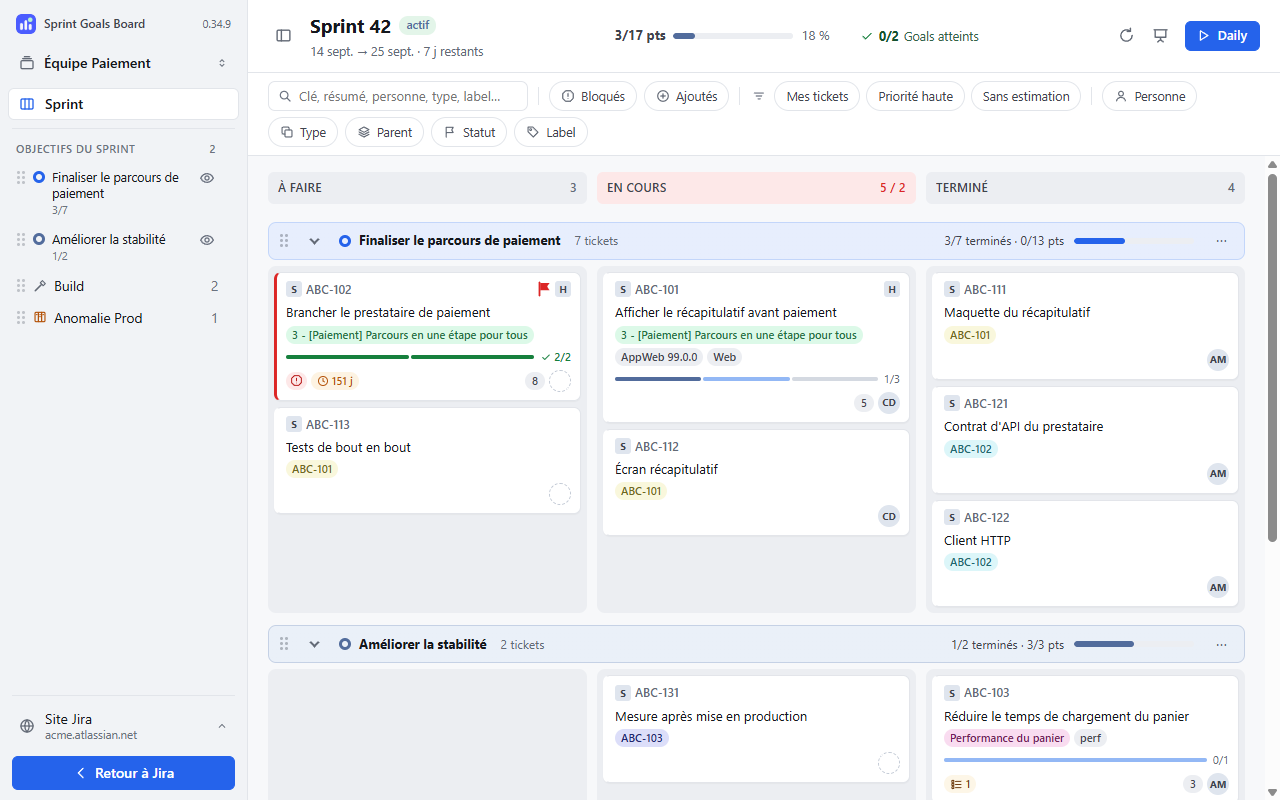
Read and filter
Rows organize issues into goals, Build and groups by issue type, such as RUN. Columns and their statuses come from Jira. Click a row in the sidebar to jump to it.
Use Search, then the Person, Type, Parent, Status or Label filters. Quick filters come from Jira. Reset (N) clears the filters; Refresh reloads the data.
Open and move issues
- Click a card to open its native Jira issue dialog. Closing it refreshes the board.
- Drag a card into a column to change its status. If the column has several statuses, drop it into the area for the status you want.
- Drag it to a goal to link it, or to its default row to unlink it.
- Move it to the position you want when Jira allows rank changes.
If Jira opens a transition form, fill it in and submit it yourself. After an error, read the result and check the refreshed board before trying again.
Return to Jira
Back to Jira is at the bottom of the sidebar. It disappears when the sidebar is collapsed; use Show sidebar to bring it back. The Sprint Goals button in Jira can be moved with its handle; its position is remembered.
Subtasks appear according to the board's scope and statuses; some may be missing.