
05 A SHARED DIRECTION
Organize goals
Choose your goals, link issues and keep priorities visible.
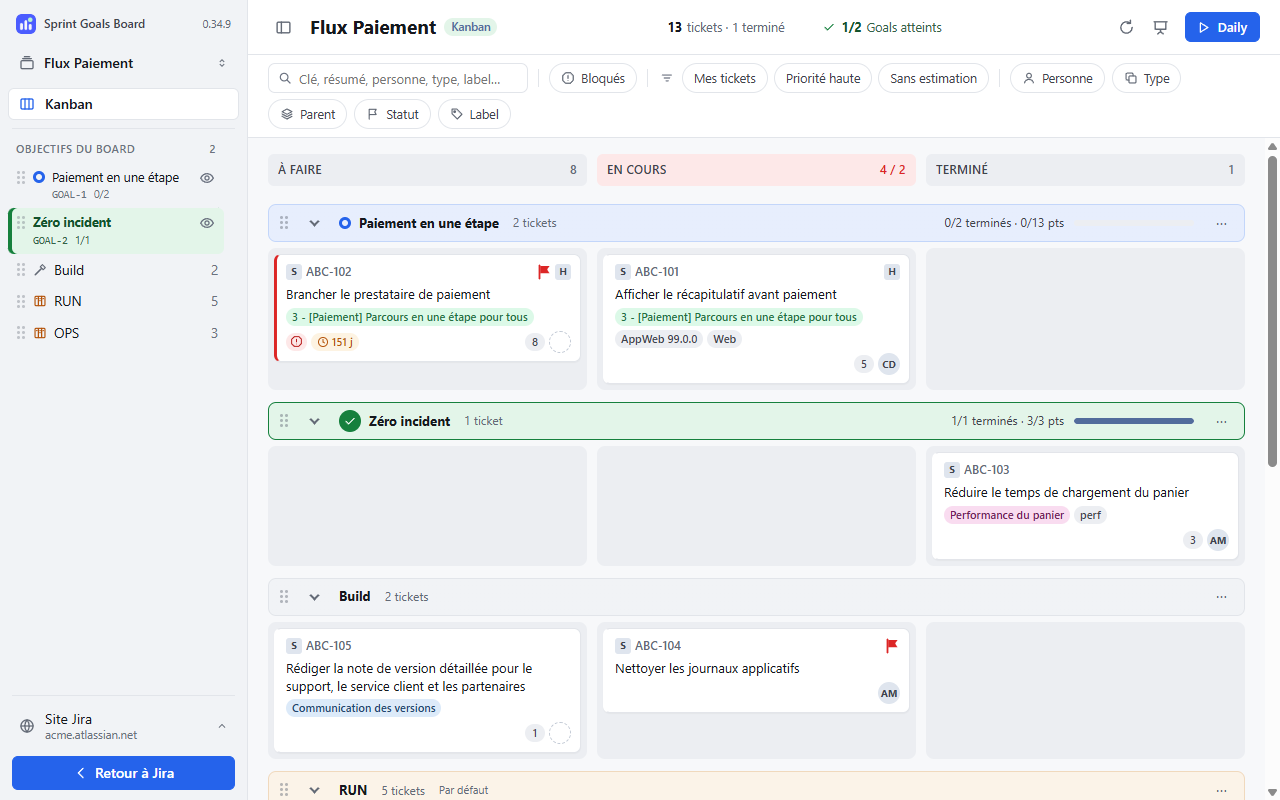
Screenshots use sample data and show the French interface.
Choose their source
Open board name → Board settings → Goals.
- Scrum, Sprint text: in Jira, fill in the sprint's Goal field with one goal per line. Refresh Sprint Goals, then link issues by dragging and dropping them. To rename or add a goal, edit that text in Jira.
- Atlassian Goals: use existing Goals linked to issues. This source is available in Scrum and is used in Kanban. Create any missing Goals in Atlassian.
Give the goal priority
A linked issue appears in its visible goal, even if its issue type belongs to RUN. Without a visible goal, it goes to the row assigned to its type: Build or a dedicated swimlane. Moving an issue between goals does not change its Jira issue type.
Build and groups by issue type disappear when empty. A non-empty goal turns green when all its issues reach the last visible column; this does not change the Atlassian Goal.
Keep or hide a Goal
Under Pin a Goal from this site, search by Name, key or owner, select the Goals and click Save to Jira to keep their rows even when empty.
Hiding a goal preserves its links and returns its issues to their default row. Use Hidden from the board to show it again.