
06 MAKE IT YOURS
Configure the board
Adapt swimlanes, fields and colors to the way your team works.
Screenshots use sample data and show the French interface.
Open board name → Board settings. Shared settings require the corresponding Jira permissions. Back to board takes you back to the issues.
Choose your interface language
In the sidebar, open Jira site → Personal preferences, then Interface language. The same choice appears in board settings in a Personal panel. It is available without Jira administrator rights.
- Automatic — follow Jira, the initial choice: French when your Jira is in French, Spanish when your Jira is in Spanish, English for every other language. If the Jira language cannot be determined, the extension uses English.
- Français: keeps the interface in French, whatever the Jira language.
- English: keeps the interface in English, whatever the Jira language.
- Español: keeps the interface in Spanish, whatever the Jira language.
The change takes effect immediately, without reloading the board or clearing fields you are editing. Your choice stays in this browser for all your boards; it is not shared with your team or saved in Jira. Select Automatic — follow Jira to restore the initial behavior.
Issue titles, Goals, statuses and custom swimlane names are not translated. Native Jira issue dialogs and transition forms keep Jira's own language.
Organize swimlanes
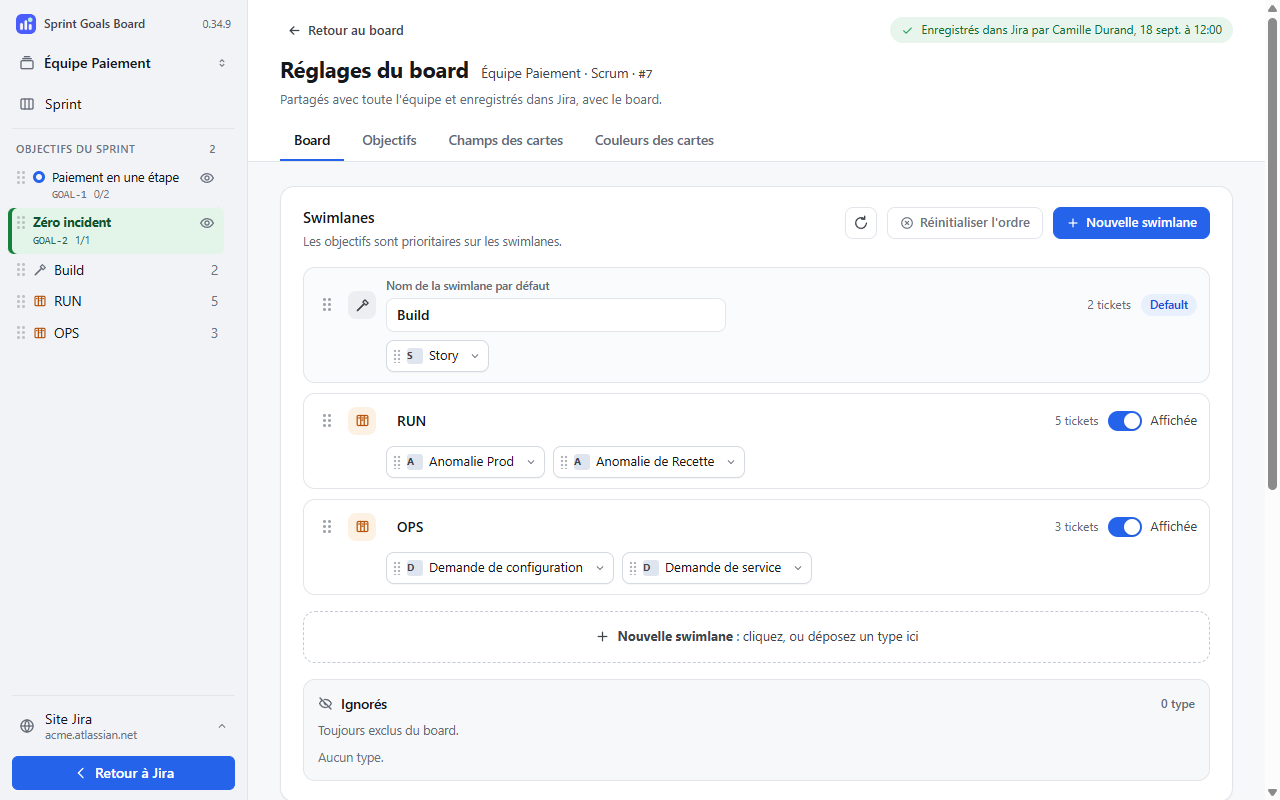
In Board → Swimlanes, Default is the default row, initially named Build. Click New swimlane, name it RUN, then add its first issue type to create it. Move issue types by dragging them or using Move to…; reorder rows with their handles. Visible controls their visibility. Excluded excludes issue types from the board, even when linked to a goal.
Changes are saved as you make them; leaving a name field saves that name. Configure columns in Jira, then use Reload columns and issue types from Jira.
Customize cards
In Card fields, choose up to three additional fields, put them in order, then click Apply.
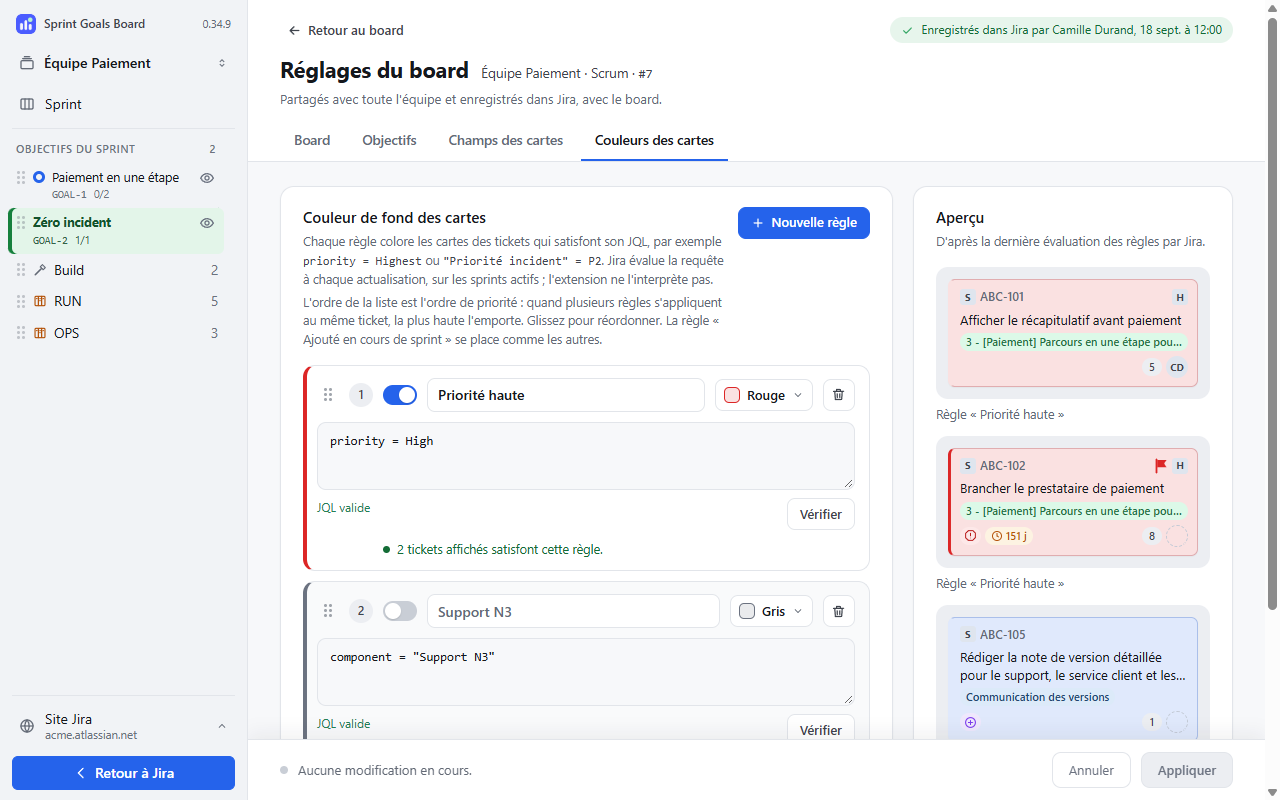
In Card colours, click New rule. Give it a name, enter its JQL using the suggestions, then wait for Valid JQL or click Validate. Choose a color and position, then Apply. The first matching active rule wins; the preview reflects saved rules after evaluation. JQL is used for colors, not swimlanes.
Apply before switching tabs: unsaved card-field and color changes are not kept.